Why Chromperfect Can Crash During Report Preview, Batch Processing, or Printing When No Default Printer Is Set

A Chromperfect crash can sometimes appear to be related to a sequence, method, chromatogram, or batch processing job when the real cause is much simpler: Windows does not have a valid default printer configured.

This issue may first be noticed during batch processing, because batch processing often generates reports, plots, or preview output automatically. However, the problem is not limited to batch processing. The same underlying issue may occur anywhere Chromperfect prepares paginated output, including report preview, print preview, automatic end-of-run processing, Rapid Review, Analysis reports, formatted reports, plots, or physical printing.
The important point is that Chromperfect may need access to Windows printer page settings even when the user is only previewing a report on screen and not physically printing anything.
Why Chromperfect Needs a Windows Default Printer
Chromperfect uses Windows printing and page setup functions when preparing paginated output.
This includes output sent to a physical printer, but it can also include reports and plots displayed on screen using print preview. A print preview is still a page-based representation of a printed document. To create that page correctly, Windows must know the paper size, page orientation, printable region, and printer margins.
Most printers cannot print right to the edge of the paper. The unprintable area around the edge of the page is known as the printer’s hard margin. These hard margins are different for different printers, so Windows normally obtains them from the selected printer driver.
If Chromperfect is preparing a preview and no specific printer is selected, Windows may rely on the default printer. If there is no valid default printer configured, the Windows call used to obtain this page information can fail.
The result may look like a Chromperfect crash, but the root cause is the local Windows printer configuration.
Where This Issue May Appear
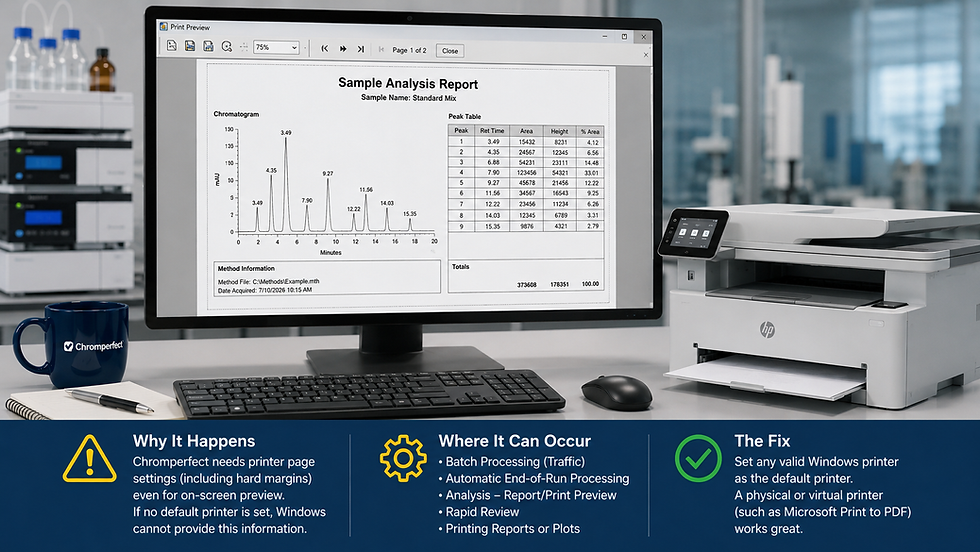
Although this issue may be reported as a batch processing crash, it can potentially affect several areas of Chromperfect.
It may occur during batch processing because Chromperfect Traffic handles batch processing and may generate reports, plots, or other output as part of the job.
It may occur during automatic end-of-run processing if the method generates reports or plots after acquisition.
It may occur in the Analysis program when a user previews or prints a report.
It may occur when using formatted reports, fixed-format reports, plot output, or other paginated output.
It may occur in Rapid Review if reports or plots are being previewed or printed.
It may occur when printing directly from Chromperfect, even if the printer itself is not the user’s main concern.
So the issue is better described as a Chromperfect paginated output / default printer issue, rather than only a batch processing issue.
Typical Symptoms
A user may report that Chromperfect crashes when batch processing a sequence.
They may also report that the same sequence works correctly on other computers.
Only one workstation may be affected.
A sequence may partly process before the crash appears.
The data may open correctly in Analysis before the crash.
After a crash during batch processing, Analysis may also crash when trying to open or preview the processed result.
The crash may seem inconsistent because it only occurs when Chromperfect reaches a point where paginated output is being prepared.
For example, one sample may process successfully if no report preview or page output is triggered, while a later sample may crash when report or plot output is generated.
Important Crash Log Signatures
The Chromperfect crash log may include entries like this:
TrafficSystem.DivideByZeroException: Attempted to divide by zero.at System.Drawing.Printing.PageSettings.get_HardMarginX()at CPVPrint.CPVPrint.Action(...)
This is the most important diagnostic signature. It indicates that the crash occurred while Windows was being asked for printer hard-margin information.
A related Analysis crash may show:
AnalysisSystem.ArgumentException: Parameter is not valid.at System.Drawing.Imaging.Metafile..ctor(...)at System.Windows.Forms.PrintPreviewControl.ComputePreview()at System.Windows.Forms.PrintPreviewControl.CalculatePageInfo()
This supports the same conclusion. The Analysis program is attempting to create a print preview or paginated screen preview, and Windows cannot provide valid page setup information.
A further secondary error may appear after the initial preview failure, for example:
AnalysisSystem.NullReferenceException: Object reference not set to an instance of an object.at CPAnalyze.frmAnalyzeMain.maybeAutoTile(...)
This may be a follow-on effect after the initial preview/page setup failure. If the earlier entries include PageSettings.get_HardMarginX() or PrintPreviewControl.ComputePreview(), the default printer configuration should be checked first.
Why This Can Happen When Nothing Is Being Printed
The phrase “default printer” can make this issue confusing.
A user may say, “I was not printing anything. I was only processing data,” or “I was only previewing the report on screen.”
That may be true, but paginated screen output still depends on printer page settings. A print preview is not just ordinary screen drawing. It is a preview of how the printed page would look, and Windows needs printer information to calculate that layout.
This is why a missing or invalid default printer can cause a crash during:
Report preview
Print preview
Batch processing
Automatic report generation
Formatted report output
Plot preview
Rapid Review output
PDF-style page layout
Physical printing
The printer does not necessarily need to be connected or online. The important point is that Windows must have a valid printer driver installed and a default printer selected.
How to Fix the Problem
The normal fix is straightforward.
On the affected workstation, set a valid Windows default printer.
This can be a physical printer, a network printer, or a virtual printer such as Microsoft Print to PDF. The printer does not usually need to be physically connected, but it must be configured in Windows and selected as the default printer.
After setting the default printer:
Close Chromperfect.
Reopen Chromperfect.
Repeat the same batch process, report preview, or print operation.
If the issue was caused by the missing default printer, the operation should now proceed normally.
Recommended Troubleshooting Steps
First, check whether Windows has a default printer selected.
In Windows 11, open Settings, go to Bluetooth & devices, then Printers & scanners. Confirm that a printer is installed and selected as the default printer.
If Windows is managing the default printer automatically, consider temporarily disabling that option and manually selecting a known printer.
A simple test is to set Microsoft Print to PDF as the default printer, then restart Chromperfect and repeat the operation.
If the crash continues, check whether the selected printer driver is damaged or unusual. Some label printers, disconnected network printers, PDF printer drivers, or unavailable network printers may return unexpected page setup information.
In that case, select a different default printer or reinstall the printer driver.
If the same sequence, data file, or report works on another workstation, compare the printer configuration on the working workstation with the affected one.
What This Chromperfect Default Printer Crash Issue Is Not
This issue does not normally indicate that the chromatographic data is damaged.
It does not normally indicate that the sequence file is corrupt.
It does not normally indicate a problem with peak integration, calibration, or acquisition.
It does not normally indicate an instrument communication problem.
It is usually a Windows page setup, default printer, or printer driver issue that becomes visible when Chromperfect prepares paginated output.
That distinction is important because users may spend unnecessary time troubleshooting methods, sequences, data files, or instrument settings when the actual solution is to configure a Windows default printer.
Summary
A Chromperfect default printer crash can occur when Windows does not have a valid default printer configured and Chromperfect attempts to prepare paginated output.
This issue may appear during batch processing, but it is not limited to batch processing. It can also affect report preview, print preview, Analysis, automatic end-of-run processing, Rapid Review, formatted reports, plots, and physical printing.
The most important crash log signature is:
System.Drawing.Printing.PageSettings.get_HardMarginX()
The usual solution is to set any valid Windows printer as the default printer, such as Microsoft Print to PDF, then restart Chromperfect and repeat the operation.
This is a simple but important configuration issue and should be checked early whenever
Chromperfect crashes while preparing reports, previews, plots, or other paginated output on only one workstation.
Comments