How to Change the Data Acquisition Directory in Chromperfect
- Chromperfect

- Feb 1
- 3 min read
Overview
If your Raw data files are appearing in the wrong folder, the cause is usually straightforward. In Chromperfect, the data acquisition directory determines where newly acquired Raw files are saved, and this setting is defined per instrument. Once it is set correctly, all new acquisitions will be written to the expected location.
Video walkthrough
How Chromperfect determines where Raw data is saved
Chromperfect writes newly acquired Raw data files into a data directory that is defined in the Run program. This directory setting is not global. It applies only to the specific instrument that is being used for data acquisition.
If the directory is incorrect, Raw files may appear on the wrong drive, inside an old folder from a previous setup, or somewhere that is not immediately obvious. Correcting the data acquisition directory resolves this issue for all future runs.
Status tab vs Selection tab
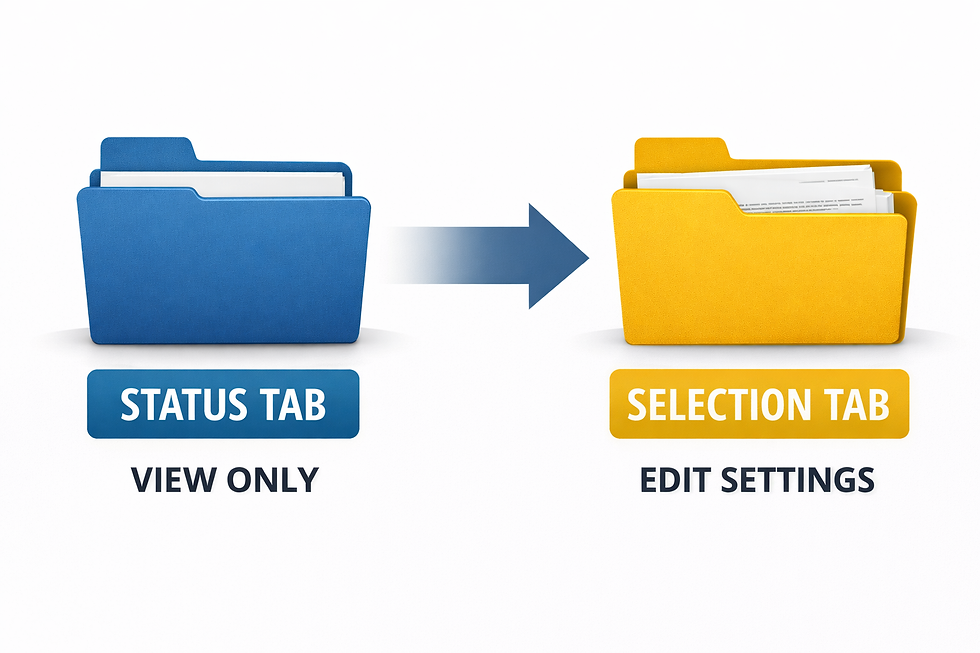
In the Run program, there are two key tabs related to data acquisition.
The Status tab, shown in blue, displays live information about the instrument and the acquisition state. This tab is read-only and cannot be used to change settings.
The Selection tab, shown in yellow, is where acquisition settings are defined. To change the data acquisition directory, you must be on the Selection tab. If you are viewing the Status tab, the directory setting cannot be modified.
Important note about Chromperfect internal folders
Chromperfect uses several internal folders for its own operation. These include the program directory, the working directory, and temporary instrument folders.
These folders are private to Chromperfect and should not be used to store Raw data files. As a general rule, user data should never be saved directly inside the Chromperfect program directory.
Choosing a Data Acquisition Directory in Chromperfect

The data directory is a separate setting and can be located wherever you choose.
By default, when Chromperfect is installed, a folder named:
C:\CPData
is created. This directory contains example content such as sample data, reports, and manuals. You may choose to create your own subdirectory within this location, or you may use an entirely different folder of your choosing.
The data directory can be located on a local drive or on a network drive, provided the location is consistently available when the acquisition PC is running.
Changing the data acquisition directory
To change where Raw data files are saved:
Open the Run program in Chromperfect
Switch to the Selection tab
Confirm that you are viewing the correct instrument
Locate the data directory setting in the instrument configuration
Select or browse to the desired folder
Save or apply the change
All new acquisitions for that instrument will now be written to the selected location.
Common mistakes to avoid
There are several common issues that can prevent the directory change from working as expected:
Selecting a folder that does not exist
Choosing a location where Windows does not have permission to write files
Saving data to a network path that is not always available
Using inconsistent drive letters for mapped network drives
Changing the directory for the wrong instrument
Because the setting is defined per instrument, updating the wrong one will not affect where your data is saved.
Confirming the change
After making the change, it is good practice to perform a short test acquisition and confirm that the new Raw file appears in the selected directory.
If the file still appears elsewhere, double-check that the directory was changed for the same instrument that was run.
Summary
If Raw files appear in an unexpected location, it almost always means the data acquisition directory for that instrument has not been set correctly.
Once the Selection tab is used to update this setting, all new acquisitions will be saved to the correct folder.
Comments